Showing posts with label Windows. Show all posts

Apr 21, 2013

Forgot Windows xp admin password, how to reset?


Forgot Windows xp admin password, how to reset?

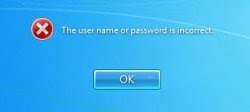
"Forgot windows xp password, need help? Few months ago, I created a password for administrator account. Today I want to login to administrator account to install a program, but it tell me that the user name or password is incorrect. I cannot reset the administrator password with standard user. I don't have windows password reset disk. Does anyone can help me?" - Question from ask.com
If forget Windows xp password, you will be locked out of Windows. You can do nothing to your Windows before getting the forgotten Windows password back. How we can recover the lost password? This document will tell you how to reset the forgotten Windows xp password in a few minutes.

Method 1: Use the hidden administrator account to login windows.

If you haven't created a password for the administrator account after installing Windows, you can use this method to login Windows and reset all windows account password, or you should try Method 2.
  1. Start Windows xp to welcome screen.
  2. Press CTRL+ALT+DEL twice quickly to bring out the classic login dialog.
  3. Type Administrator in User Name box, and leave the password box empty.
  4. Press Enter or Click OK to login.
  5. Use the net user command to change the forgotten user password. Open command prompt, type: net user user_name, new_password.
Method 2: Reset forgotten windows password with Spower windows password reset tool.
Spower windows password reset tool has three editions: Professional, Ultimate and Special. All of them can help to reset Windows xp password. Here shows you how to use the Professional to reset windows xp password.
To reset Windows xp password, you just need to follow the steps below:
Step 1: Download Spower Windows Password Reset Professional and install it to a windows. Spower Windows Password Reset Professional can be installed in windows 7, 8, vista, xp, 2000, 2003 and 2008. If you install it in Windows vista or Windows 7, I recommend you run installation program as Administrator, and run it as Administrator.
Step 2: Create a bootable USB Windows password reset disk.
Windows password reset usb disk burn screenshot
  1. Launch Spower Windows Password Reset Professional.
  2. Plug in a writable USB drive to USB port.
  3. Click Burn to USB button to burn Spower Windows password reset program to USB drive.
After burning successfully, use this USB drive to boot the locked computer. Tip: Spower Windows password reset professional also support Windows password reset cd disk creation, you can refer to How to create a Windows password reset CD/DVD disk for more information about that. Step 3: Set your locked computer which you have forgotten login password to boot from USB drive.
If you have trouble in setting the computer to boot from USB drive, you can refer to How to set computer to boot from USB drive for more information.
If you want to boot from CD/DVD-ROM, you can refer to How to set computer to boot from CD/DVD-ROM.
Step 4: Boot your computer (the computer you have forgotten its password) from Windows password reset disk.
Plug in Windows password reset disk to the locked computer, and restart it. Wait for half a minute, the Spower Windows Password reset program will start and ready for you.
Step 5: Reset forgotten Windows xp password with Spower Windows password reset program.
Do the steps below to reset windows xp password:
reset forgotten windows xp password screenshot
  • If you have more than one Windows system on your computer, select the one you have forgotten its password.
  • Select the account which you have forgotten its password. Here we select Administrator.
  • Click Reset button the reset the selected account password to blank.
  • Click Reboot button to restart the computer.
After rebooting, you have reset the forgotten password for your windows xp, you can login Administrator account with an empty password..

Now you can instantly reset windows password:

Mar 17, 2013

How to hack Windows 7 password

How to hack Windows 7 password


 How to hack Windows 7 password when you forgot password? It is not so simple to hack than on Windows XP. If you ever forgot Windows 7 password, you may find that several fruitful Windows password hack replies employed for Windows XP doesn't work for Windows 7 due to its superior security characteristics and you may have to find a new reply for your disregarded Windows 7 password hack.
Need to recover Windows 7 password? Windows 7 password reset or recovery solution is quite easy if you pick up the right way. In case you may lose important data during your recovery, here we give a full detail of the solution. In this, we take the most used  laptop or computer for example.


The  laptop is widely used for its excellent quality. It gives customers all the power and performance to enjoy the computing life. Windows 7 system is the latest popular system, and it allows you create several accounts for each users. So it may raise a risk to forget the password.


It is really frustrated if you realize your windows 7 login password lost. Are there any methods to get it back?
I forgot Windows 7 password to my  computer, how to I do reset it? Please help, I am locked out from my important data!!
Windows 7 password reset or recovery solution isn't so difficult if you pick up the right way. In case you may lose important data during your recovery, here we give a full detail of the solution. In this, we take the most used  laptop or computer for example.
The laptop is widely used for its excellent quality. It gives customers all the power and performance to enjoy the computing life. Windows 7 system is the latest popular system, and it allows you create several accounts for each users. So it may raise a risk to forget the password.


Password lost often happens; there are many reasons for losing password. If you don’t pick up a good way, it could ruin your days completely. Here we share some practical solutions for you.


 Password reset disc only use in a certain account which you have created before losing that account password, or it won’t help. So it’s better to create password reset disc when you add a password to a new account. If you have problems with how to create USB windows 7 password reset disk, you can see more details in MS website.

Here is how to recover windows 7 password with  password reset disk

Step 1: When entering a wrong password, it will show you the Password hint and you can reset password as following picture. Click “Reset password” it will show you the Password Reset Wizard.

Step 2: Click NEXT and select your USB password key disk drive to reset the password with a new one.

Step 3: Then you can use the new password enter your computer.


Windows 7 OS has a built-in administrator account that is created during Windows installation, and disable by default. The account has no password in it. You need to enable that account before losing your other admin account password. Or in this tip your built-in administrator account won’t appear in the screen.

1. Start your computer and press "F8" while the computer boots up. Scroll down to "Safe Mode with Command Prompt" with the arrow keys on the keyboard and press "Enter." Your computer starts in Safe Mode with Command Prompt.

2. Select the Administrator account that appear in the screen, then enter command prompt. Type: net user XXX 123456 and enter (XXX is the account name which password you need to reset 123456 is the new password), it will show you a message that” the command completed successfully.

3. Restart your computer, then you can log in as XXX with the password 123456. You can go to control Panel to change your account password if necessary.


If you didn’t enable the built-in administrator account or you’ve reset the default administrator account password before and you forgot the password. Or you don’t have a password reset disk. In this situation you need to find Windows Password Key to wipe up the password, it is the best and quick choice.

1: Log in any available computer that you can access to and allow you download. Download and install Windows Password Key in that computer.

2: Run and burn Windows Password Key to a blank CD/DVD or USB flash drive.

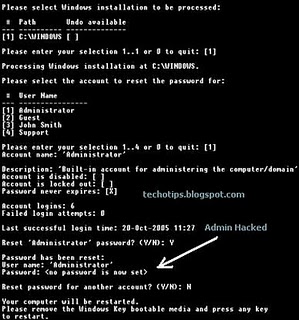
3: Insert the disk to your locked Computer and then boot it from the disk, then you can follow the instruction to reset your password. The command line just like this:

Step1: Location selection
Please select Windows installation to be processed

Step 2: Select User Name Here are the user names detected in Windows:
1 Administrator 2 Dvai 3 Guest 4 Sarah 5 HelpAssistant
Please enter your selection 1..5

Step 3: Confirmation
You are about to reset the password of 'Administrator' Are you sure? (y/n)
Password of 'Administrator' reset.Your computer will be restarted.Please remove the Windows password key bootable media and press any key to restart.

It’s 100% recovery, so I’m sure you’ll enter your Windows 7 system with that account.

How to Hack Windows Administrator Password

How to Hack Windows Admin PasswordThis post will show you how to hack Windows administrator password at times when you forget it or when you want to gain access to a computer for which you do not know the password.
Most of us have experienced a situation where in we need to gain access to a computer which is password protected or at times we may forget the administrator password without which it becomes impossible to log in to the computer. So, if you are somewhat in a same kind of situation, here is an excellent hack using which you can reset the password or make the password empty (remove the password) so that you can gain administrator access to the computer.

Hacking the Windows Admin Password:

You can do this with a small tool called  Offline NT Password & Registry Editor. This utility works offline, that means you need to shut down your computer and boot off your using a floppy disk, CD or USB device (such as pen drive). The tool has the following features:
  • You do not need to know the old password to set a new one.
  • This tool can detect and unlock locked or disabled out user accounts!
  • There is also a registry editor and other registry utilities that works under linux/unix, and can be used for other things than password editing.

How it Works?

Most Windows operating systems stores the login passwords and other encrypted passwords in a file called sam (Security Accounts Manager). This file can be usually found in \windows\system32\config. This file is a part of Windows registry and remains inaccessible as long as the OS is active. Hence, it is necessary that you boot off your computer and access this sam file via the boot menu. This tool intelligently gains access to this file and will reset/remove the password associated with administrator or any other account.
The download link for both CD and floppy drives along with the complete instructions is given below:
It is recommended that you download the CD version of the tool since the floppy drive is outdated or doesn’t exist in today’s computer. After the download, you’ll get a bootable image which you need to burn it onto a blank CD. Now, boot your computer from this CD and follow the screen instructions to reset the password.

Another Simple Way to Reset Non-Administrator Account Passwords:

Here is another simple way through which you can reset the password of any non-administrator accounts. The only requirement for this is that you need to have administrator privileges. Here is a step-by-step instruction to accomplish this task:
  1. Open the command prompt (Start -> Run -> type cmd -> Enter)
  2. Now type net user and hit Enter
  3. Now the system will show you a list of user accounts on the computer. Say for example, you need to reset the password of the account by name John, then do as follows:
  4. Type net user John * and hit Enter. Now, the system will ask you to enter the new password for the account. That’s it. Now you’ve successfully reset the password for John without knowing his old password.
So, in this way you can reset the password of any Windows account at times when you forget it so that you need not re-install your OS for any reason. I hope this helps.

How to Hack Windows 7 Administrator/User Password

How to Hack Windows 7 Administrator/User Password

Forgot Windows 7 password is not a fun, you may need to reinstall your Windows 7. Is there a way can hack Windows 7 password without current password? Here are three available methods, each of them can help you regain access to Windows 7 with no data loss. Note that Method 1 is a universal tip, method 2 and 3 have some limitations.
Method 1: Hack Windows 7 Password with Professional Windows Password Recovery Tool
Method 2: Hack Windows 7 by Using A Repair Disk
Method 3: Hack Windows 7 Administrator/User Password Via Password Reset Wizard

Method One: Hack Windows 7 Password Using Professional Windows Password Recovery Tool.


To hack a Windows password we can use Windows Password Rescuer, please refer to: What If Forgot Windows 7 Admin Password.
We also can use Windows 7 Password Recovery Tool, which can help hack Windows 7 by reseting administrator and user password with CD/DVD or USB Flash Drive. Here are the steps to hack Windows 7 administrator password:

Step 1: Download and install "Windows 7 Password Recovery Tool" on "another computer".
Purchase Windows 7 Password Recovery Tool Full Version, Full Version can reset all user accounts password of your computer, and add new admin account without login.
Windows 7 Password Recovery Tool Trial Version can only dispay all user accounts of your computer, but cannot reset password or add new user account.
Run the software and create a Windows Password Recovery Disk that you can use it to hack any Windows 7 login password.
1. Insert a blank CD/DVD or USB flash drive. Choose CD/DVD or USB Device option.
Create password recovery disk with CD or DVD
2. Select the CD/DVD or USB drive name which you inserted, click Begin Burning to start burning.


It will take you about one minute to complete burning. After successfully complete burning. Remove the disk and transfer it to your "locked computer" to reset Windows password.

Step 2: Insert the Windows password recovery disk to your locked computer, set the computer boot from CD/DVD or USB Drive.
I create a Windows password recovery disk with CD/DVD, How to boot from CD/DVD-ROM.
I create a Windows password recovery disk with USB Flash Drive, How to boot from USB drive.
When you save the new setup, your computer will restart automatically and boot from the recovery disk.

Step 3: Hack Windows 7 administrator and user password with a few clicks.
After booting from CD/DVD or USB, Windows 7 Password Recovery Tool will start automacally and display a friendly interface.
1. Select a Windows system which you want to reset its users' password.

2. All Windows 7 user accounts will be displayed. Select your target user account.


3. Click Reset Password button, click Yes when a confirm message appears. You can reset other users password as well.

Administrator password has been removed and show blank.


4. After reseting password successfully, click Reboot. When following dialog pops up, remove your Windows password recovery disk first (important!), and click Yes to restart your computer then you can login the user account without password.


Method Two: Hacking Windows 7 by using A Windows 7 Repair Disk


As we know, we can use a Windows 7 repair disk to reset the system to a previous point so that you may know the password or there is no password protected. But note that for this to work there must be a valid System Restore Point to use from the last successful log on and you must create the repair disk before losing your password.
A Windows 7 repair disk can be created easily:
Step 1. Insert a writable CD/DVD to the DVDRW. Click on Start, search for system repair disc, then click Create a system repair disc from the search results.
Step 2. Choose your DVD Device name, click Create disc. It will be completed in a minute.
Create a Windows 7 system repair disk
When you want to hack a Windows 7 forgotten password, just insert the repair disk to your computer and restart it. When the System Recovery Options dialog appears, select Startup Repair and follow the Repair Wizard. After successfully restoring, you may need to add back some programs and/or Windows Updates that may have been removed during the restore process, you may also need to reset any personal settings that may have been changed but none of your personal documents or files will be removed.
bypass Windows 7 password

Method Two: Hack Windows 7 Administrator/User Password Via Password Reset Wizard


This is a common and free method to hack Windows 7 by reseting administrator/User password without current password. It is Windows 7 password reset disk. But you need to create it before you lost your password. You just need to create it one time, and you can use it to reset password for many times you'd like.
It is very easy to complete Windows 7 password hacking by using this disk.
Step 1. When you failed to login Windows 7, it will show you a link "Reset Password.." under the password box.
bypass Windows vista password by CMD
Step 2. Plug in your password reset disk(this can be created with USB), click the link open the password reset wizard.
Step 3. Click Next, choose the drive name from the pull-down list, click Next.
Step 4. Type a new password in the new password box, and type it again to confirm. Click Next→Finish. Then you can login Windows 7 again with the new password.

How to Hack Windows

If you ever needed information on hacking Windows, then here are two methods you can use. However, keep in mind that this is for learning purposes only.

Steps


Method One: Hacking from the Windows 7 CD

  1. 1
    Boot the system from the Windows 7 CD.

  2. 2
    Click on Next.

  3. 3
    Choose “Repair your computer”.

  4. 4
    Click Next in the System Recovery window.

  5. 5
    Choose the Command Prompt option below.

  6. 6
    In the command prompt window, copy the Seth file to C drive. Enter this command: “C:\windows\system32\Seth.exe c:” (without quotation marks).

  7. 7
    Replace the Seth.exe file with cmd.exe file with following command, and type “yes” to replace the file: "c:\windows\system32\cmd.exe c:\windows\syetem32\Seth.exe" (without quotation marks).

  8. 8
    Type "exit” to restart the Windows setup.

  9. 9
    Press the shift key 5 times, rapidly, when you're in the username screen. In the Sticky Keys window, click Yes.

  10. 10
    In the command prompt window type the “net user,” “user name” and “password”. For example: net user administrator 123


Method Two: Hacking from the Start Screen

  1. 1
    When the computer starts up, hold down F8 before you see the "Windows Starting" screen. This will bring you to a screen with choices. Your best bet will be "Safe Mode with Command Prompt". You can then do as you want.
  2. 2
    Go down to the bottom and select "All Files".
  3. 3
    Name the file: Batch.bat.
  4. 4
    Go to where you saved the file, and open it. This will open up Command Prompt.
  5. 5
    If the computer has Notepad blocked, you can use edit. Access this by opening command prompt or command.com and typing edit. Also, you can even use Microsoft Office or something if you can save it right.
  6. 6
    Do as you wish inside command prompt. Here is how to add or delete accounts:
    • Add Account: C:>net user USERNAME /add
    • Change Accounts password: C:>net user USERNAME * then you'll be able to enter a new password for the account. If you just press enter without typing anything, the account password will be reset.
    • Delete Account: C:>net local group Administrators# # Another way is to open up notepad, (if it's not blocked), and type in "command.com". Then go to File->Save As. A USERNAME /ADD

Get Your Data Back

Get Your Data Back 
Mostly all people think that if anything happen with harddisk , they looses all the valuable data they have stored.It causes in many cases in day to day life like -
  1. Partition loss,
  2. Just because of viruses ,they installed New Operating System .
  3. Format 

All those important file and vedios you lost from your partiton ,time to get them back . Here i am reviewing a   software GetDataBack for NTFS , Using this software you also get back all your valuable data . 
First download the software from the link given below -
Installation Wizard will start when you click on the setup, follow all the process 
Click in the checkbox abd press next 


       Give location where you want to install and click Next 


Click Next 

Click Next 

Your Installation is complete now , Click on Finish Button and start the software

This is the important window comes infront of you when you start your software application .
There are some options given choose according to your case :

  • If you don't know what to do select default settings
  • In case of Partition loss , Perform Quick Scan
  • In case someone Format your Drive and you loose all your data then use Systematic file system damage to recover all data.
  • Sometimes most of the people installed new operating system just because some files are missing .To recover in this situation choose Sustained file system damage  option.
  • Last option is for those who want to recover only those files which they deleted from harddisk.


Here click on the Physical drive options ,select your Partition as i have select
  2nd partition(NTFS)97.6GB and click on Next Button.


 Second step : Select the file system .Your system automatically shows your file system . Here I selected the NTFS at sector 206,848 cluster size 8(97.6 GB). and click Next .
Note : NTFS is the windows file system 


 Now it will ananlyze your harddisk 


Here your will get all your data as shown here !!!!
This is how you will recover your all data 
Enjoy!!

How to take Windows Xp On Remote from Win 7

Remote Desktop Connection 


  • What is remote desktop ?
  • Which command is used for this ?
  • How we can view others PC in our system through Remote Desktop ?
What is remote desktop 

A remote desktop is a default windows utility that is used to take any system on remote through ip address.
Which Command is used for remote desktop 

Command : mstsc 

How we can view others PC in our system 

We can view others PC by creating the remote connection . To creating the remote connection you have to follow these steps given below :- 
   
                            Step1 : Press Ctrl + r > write mstsc and click OK Button.
Step 2: As you press enter Remote Desktop Connection Utility will open Now write the Ip address of target computer which you want to take on a Remote . Here I want to take this Ip 192.168.127.129 on Remote  in my windows 7 . Click Connect button.
This image shows that Remote Desktop Connection Utility is Connecting to 192.168.127.129 address.
Step 3: Xp Login Window comes now . Write your account Username and Password and Press OK . 
Here you can see that we successfully take Windows Xp (192.168.127.129) on Remote in Windows 7 .


Note : - There are certain issues come when you are remotely connecting PC on remote :-

Its look like this (see below )


Its says Remote Desktop can't conenct to the remote computer for one of these reasons :

  1. Remote access to the server  is not enabled.
  2. The remote computer is turned off
  3. The remote computer is not available on the networl 
To resolve this issue , you have to enable the remote acccess on the target system .
To resolve this issue Goto My computer >Properties


CLICK ON Remote Tab 
Click the check boxes
  • Allow Remote Assistence.
  • Allow users to connect on the remotely on the computer .
Click on Apply and OK .
Now connect it again :-

completed